Sell · step 11 of 13
Ring up your first sale and close the register
Open a register with a cash float, make a sale, take payment, print the receipt and close the shift with a cash count.
5 min · Updated October 17, 2026 · By SmartPOS editorial team
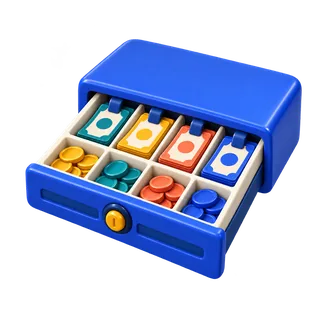
Open the register
Go to POS. If no register is open, SmartPOS asks for the opening cash (the float in the drawer). Enter it and continue.
Make a sale
- Scan a barcode or search for a product. Tap a product tile to add it.
- Change quantity, add a discount or a note on the line.
- Choose the customer if you track customers (needed for reward points, credit and ledgers).
- Tap Pay, choose the payment method (cash, card, a custom type such as JazzCash or gift card) and enter the amount. For cash, the change due is shown.
- The receipt prints and the drawer opens.
Other ways to finish a sale
- Draft or Suspend: park a sale and come back to it.
- Quotation: give a price that can become a sale later.
- Credit sale: sell on account to a customer with pay terms.
Close the register
At the end of the shift, Close register. Count the cash by denomination; SmartPOS compares it with what should be there and shows any difference. Print or save the closing report.
Keyboard shortcuts
Shortcuts for pay, discount, quantity and search are under Settings → POS settings → Shortcuts.
Related guides
Stuck? Ask support or book a free setup call.